Quick start
Plan, check and run your first task in about ten minutes. No robot needed: Kata's Studio runs a digital twin of a palletising cell in your browser.
Open Kata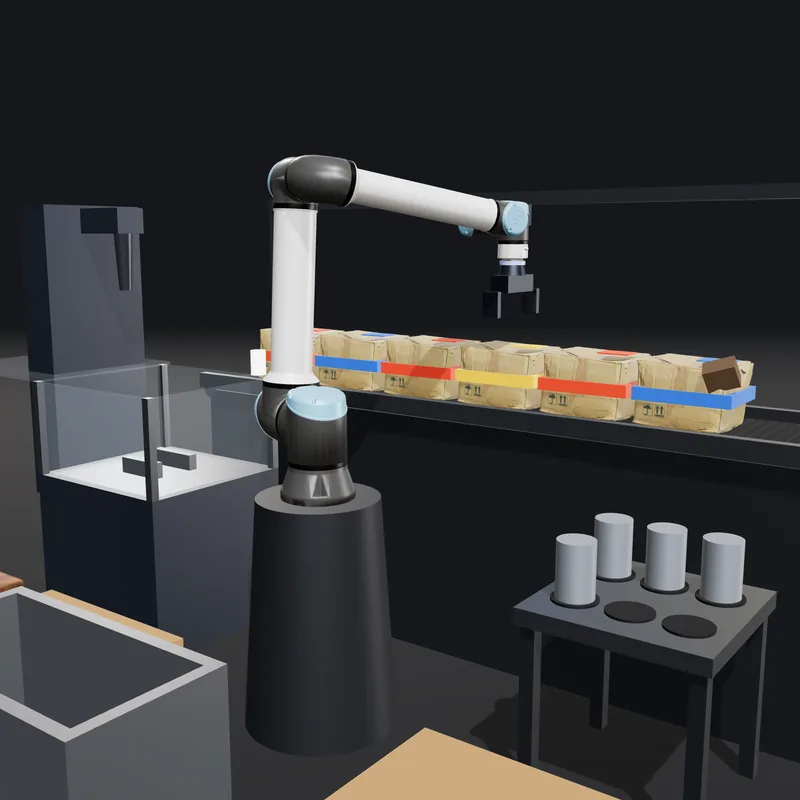
Your first task
1Open the Studio
Go to Kata's Studio. You'll see a UR10e in a demo cell with a conveyor, two pallets, a reject bin and a CNC machine.
2Describe your task
Type or say what you want, in English, Bahasa Malaysia, 中文 or Manglish.
Susun kotak merah atas palet A, tiga tingkat.3Check the plan
Kata writes a step-by-step plan and plays it in the digital twin. Every move is checked for reach, collisions, payload and fit. Anything it can't do safely is flagged with the reason, before the arm moves.
4Approve and run
Signed in to the app, a supervisor approves the exact program. A paired bridge then runs it on the robot (URSim or a real arm) and streams the joints back live.
Installing the bridge
Browsers can't talk to a robot controller directly, so Kata uses a small bridge program on a PC on the same network as the robot. It needs Node.js 20 or newer. Pilot customers get the bridge package from us; then:
npm install
npm run bridge -- status 192.168.1.20status connects to the controller and prints its mode, safety state, joint angles and tool position. It moves nothing.
Natural-language programming
The planner reads your instruction together with the current state of the cell: where every part, pallet and fixture is, what the gripper holds and what the robot can reach. It answers with a structured plan, not free text: a list of picks, places, waits and checks that Kata can verify step by step. If the planner is unavailable, the Studio falls back to an offline planner for common tasks.
Cells
A cell is your robot's workspace, described as data: the arm, conveyors, pallets, bins, machines and keep-out zones, with their positions and sizes. Kata plans against your cell, so a plan that works in the twin works on your floor. Teach a cell once in the app and every operator plans against it.
Plans and checks
Every step is solved with the arm's inverse kinematics and simulated before it can be approved. Kata checks:
- Reach: every target is inside the arm's working envelope, with a valid joint solution.
- Collisions: the arm, gripper and load stay clear of fixtures and each other.
- Payload: nothing heavier than the arm and gripper can carry.
- Fit and fragile items: parts fit where they're placed; fragile loads move slower.
Signed approvals
Nothing runs until a named person approves it. The approval is a digital signature over one run of one program on one robot, and it expires after five minutes. The bridge checks the signature and refuses any program that was changed, reused or approved too long ago, so the rule is enforced next to the robot, not only in the browser.
Run on URSim
URSim is Universal Robots' official simulator. It runs the same controller software as a real arm, so it's the safest place to try the bridge. With Docker installed:
npm run ursim
npm run bridge -- ready
npm run bridge -- verify "Stack the red boxes on pallet A, three high."ready powers the simulated arm on and releases the brakes. verify plans the instruction, runs it on URSim and reports whether the controller followed the plan.
Pair a real robot
In the app, add a robot to your workspace and copy its 8-character pairing code. On the bridge PC:
npm run bridge -- pair ABCD1234
npm run bridge -- servePairing saves the robot's details and Kata's public key on the bridge PC. serve brings the robot online in the app and runs approved programs as they arrive. Stop it with Ctrl+C.
Export URScript
Every plan can be exported as URScript, Universal Robots' own language, with speed and zone limits written in. Review it, keep it with your process documents, or load it on the teach pendant yourself.
Bridge commands
The host defaults to $ROBOT_HOST, then the robot's saved address, then 127.0.0.1 (URSim).
| Command | What it does |
|---|---|
status [host] | Robot mode, safety state, joints and tool position |
ready [host] | Power on and release the brakes |
run <file.script> [host] | Run a URScript file and report the time taken |
stop [host] | Stop the running program |
verify "<instruction>" [host] | Plan an instruction, run it and check the result |
pair <CODE> [server] | Link this bridge to a robot in your workspace |
serve [host] | Go online and run approved programs |
Safety limits
Kata caps speeds in every program: the last few centimetres of each approach run at 0.15 m/s, and fragile loads never move faster than 0.25 m/s. Your controller's own safety configuration always applies on top. Kata's checks are not a substitute for a risk assessment of the cell; see Safety.
Supported robots
Universal Robots e-Series arms today (developed on the UR10e), through RTDE, the Dashboard Server and URScript. The planner itself is independent of the arm brand, and the bridge is built so other controllers can plug in.
Support
Stuck, or want a walkthrough on your own cell? Book a session or email us.
Nothing matches that search. Try "bridge", "approval" or "URSim".